Before you start
What you need
- Sign in to NIKKE Lab with Discord to save and return from another device.
- Have your union ID and region ready. An account in the union can import the member list from BlablaLink.
- Members whose builds you import must make both their ShiftyPad roster and outpost data public.
01
Choose exactly what the plan should cover
Build plan keeps scope visible above its four steps. Missing input is never counted as zero damage.
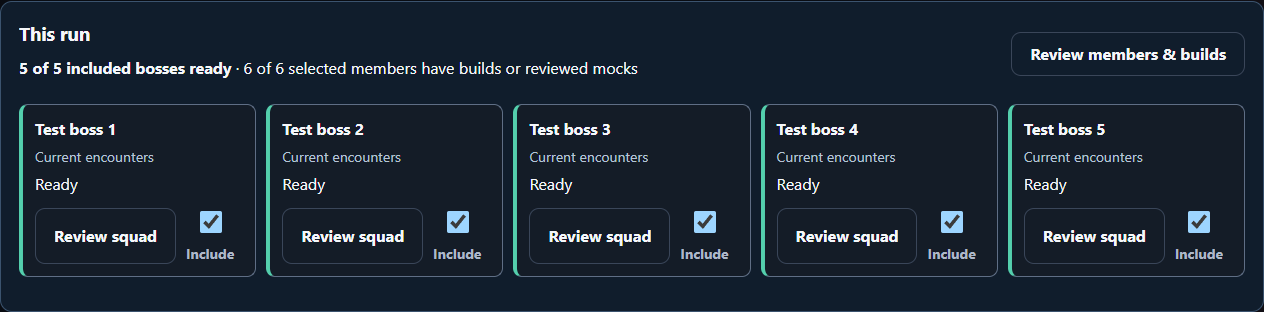
Include your targets
Keep Include checked for every boss you want the planner to cover. A boss with missing setup shows an action to choose a squad, verify DEF, or review a mock lineup. Exclude an encounter deliberately if it is outside this plan.
Expected: Every included boss has usable setup. Current committed attacks remain protected, even on an excluded boss.
Review members and budgets
Use Review members & builds to reach the account captures and attack budgets. Refresh build sits beside the saved capture; the budget has its own control. The budget is a total plan limit, including completed and running attacks. It never restores game tickets.
Expected: Accounts, active participation and available attacks agree with the raid you are planning.
Calculate only what changed
The simulation button names the selected member and boss counts. The completion summary reports calculated, reused and unavailable matchups. The next-simulation checkbox only controls calculation; existing valid results may still be assigned. Use Keep attacks available to reserve a member instead.
Expected: Review skipped matchups and uncovered bosses before applying the proposal.
02
Allocate attacks from mocks, simulations, or both
You can plan without importing a roster when you have reviewed mock results and an exact five-NIKKE lineup.
Choose the damage source
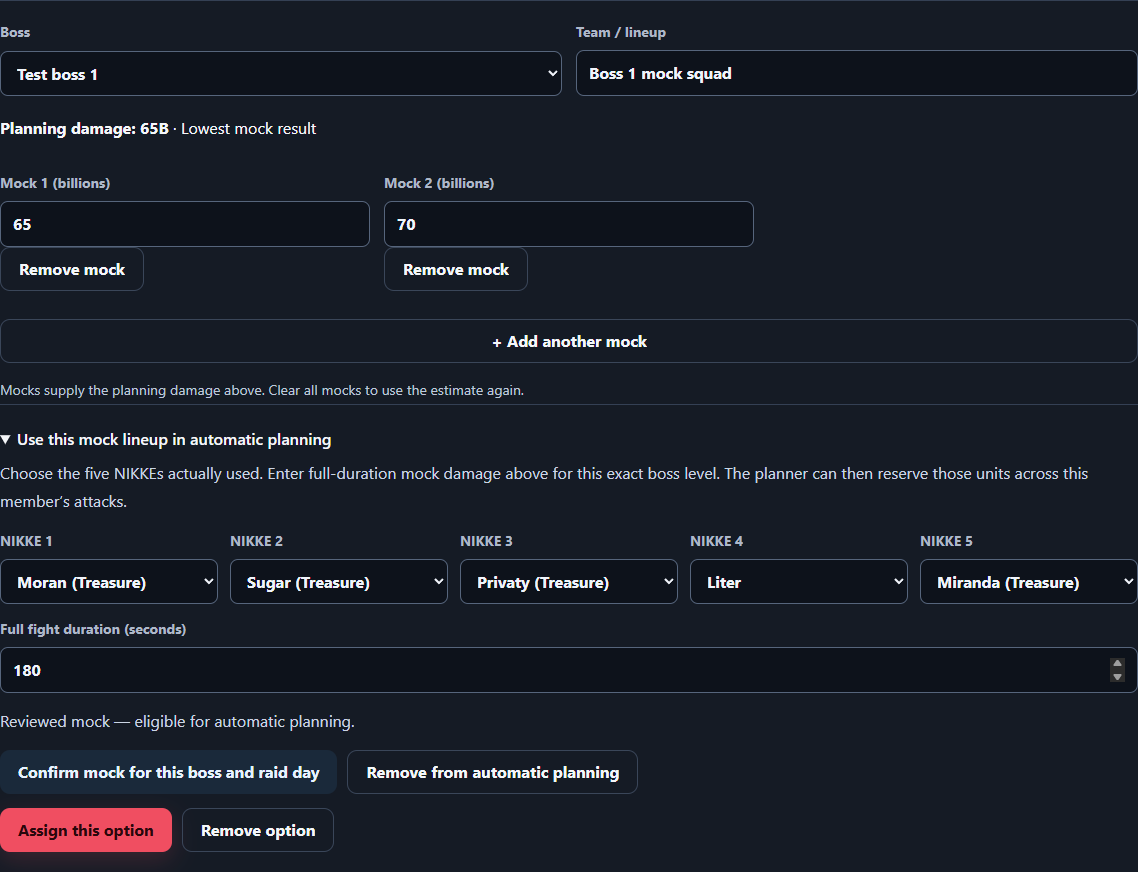
At the top of Build plan, choose mixed sources, simulations only, or mocks only. In Teams, expand Plan from mock results and open the member you want to configure.
Record the actual lineup and damage
Add a team option, choose its boss, and enter up to three comparable full-fight mock totals. Select all five NIKKEs in their actual squad order and enter the fight duration. Confirm the lineup to enable automatic allocation. A team nickname alone cannot verify unit reuse.
Review the buffer and limits
Choose the lowest or median mock result. Balanced uses that result; Conservative multiplies it by your selected damage factor once. Review the raid day and attack budgets in Calculate, then open Review.
Apply and brief your members
The search chooses from reviewed mocks and eligible simulation results while avoiding repeated NIKKEs within one member’s teams. Different members may use the same NIKKE. A reviewed mock takes priority over a simulation for the same ordered lineup, boss and duration. Applying changes the draft; wait for the save status before leaving.
03
Practice and recover without resetting the live raid
| Raid action | What it does |
|---|---|
| Refresh official progress | Opens Progress sync. Complete its normal connection and review workflow before applying official data. |
| Discard uncommitted draft assignments | Shows the generated draft assignments that would be removed. Recorded, running, pinned, acknowledged, instructed and manual orders are preserved. |
| Create a practice copy | Copies the raid into local temporary state, restores known full boss HP and fresh budgets, and clears results and live progress. Live saving and syncing are paused. Returning to the live planner discards practice changes. |
| Prepare next season | Opens the existing next-season review. Check the new season and roster before replacing the active plan. |
04
Create your first plan
Connect the union
In Members → Union & members, enter the union name, ID, and region. Follow Import union members to open BlablaLink, sign in, and use the supplied bookmark. Review member matches before applying. You can also add names manually.
Expected: Names and account IDs are visible. Mark participating members Active.
Load the correct raid
Continue to Raid settings. Load the season, difficulty and level. Seasonal data supplies full HP and available DEF. If the raid has already started, sync official progress or enter remaining HP for a manual plan.
Expected: The bosses and level match the raid you are organizing.
Choose boss teams
Open Build plan → Teams and choose a boss card. Pick five NIKKEs in their intended order, then Save squad option. For an existing team, choose Edit units & substitutes beside its saved name. You can begin with one boss and add more later.
Expected: The boss card shows a saved team option.
Import selected builds
Continue to Import. Select the active members to include, confirm permission, and choose Import all selected members. This selection is also used for calculation. Missing units skip only the complete lineups that require them.
Expected: Each member has linked builds or an actionable import message.
Calculate and apply
In Calculate, check readiness and confirm the raid day, account links and attack limits. Run member matchups, then review targets, teams, estimated damage, uncovered HP and overkill. Apply recommended assignments when the proposal fits your plan.
Expected: The raid board shows the applied assignments. Calculating alone does not change orders.
05
You have results. What should you do next?
Read the plan as a whole
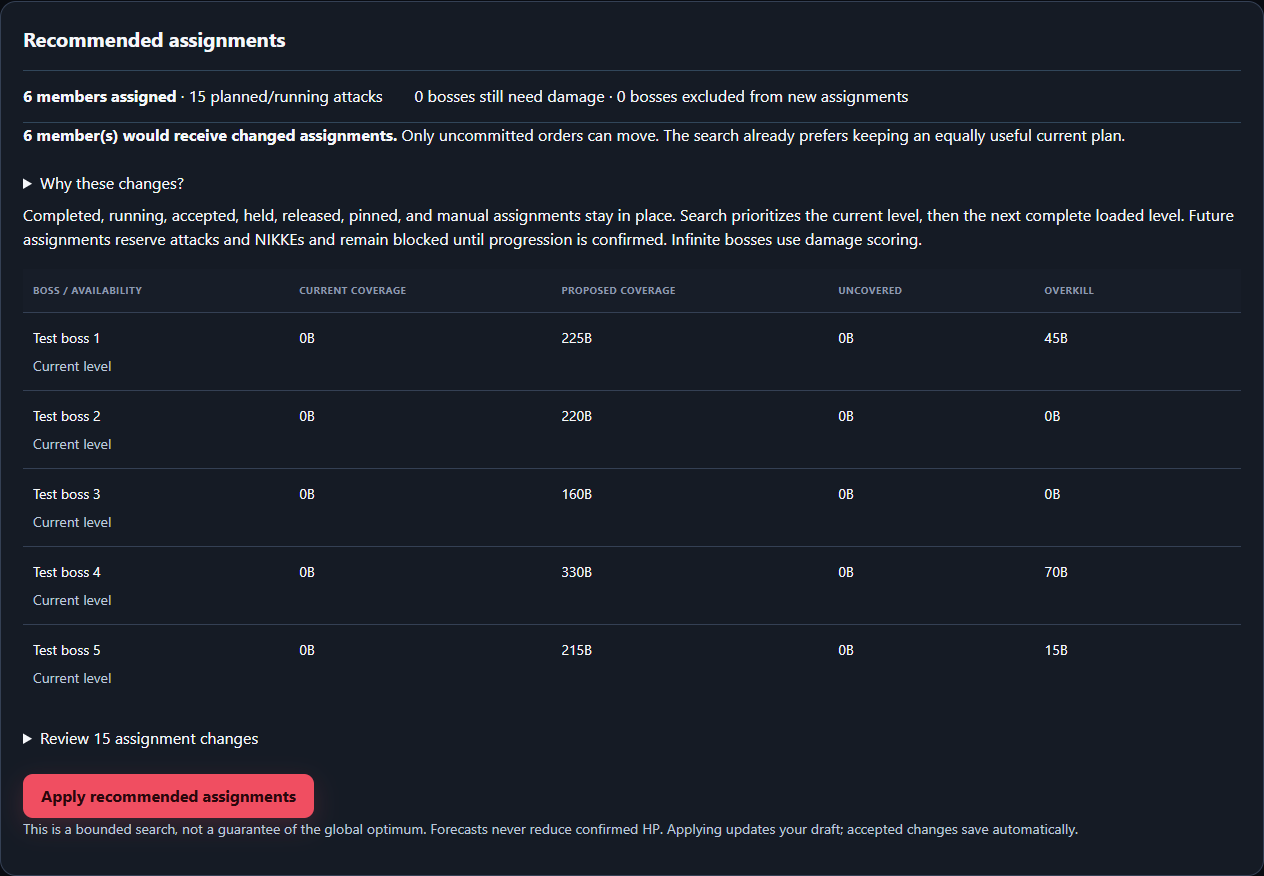
In Build plan → Review, start with Recommended assignments. Compare coverage across all current bosses, then read each member’s before → after change and the planning notes. The highest individual damage row is not automatically the best assignment: that member’s NIKKEs and remaining attacks may be more valuable on another boss.
Check that the damage can actually arrive
Confirm remaining attacks, the exact primary/substitute lineup, current builds, and member availability. A zero Uncovered value means the estimates cover the target; it does not guarantee a kill or mean those members can all attack now.
Accept and communicate the decisions
Apply recommended assignments accepts the displayed proposal as a whole. Review it first, then check the save status. Give each player their boss and level, exact five-NIKKE lineup, expected damage, and whether to attack now, at a scheduled time, or wait for your next instruction.
06
How to read damage, coverage, and overkill
| Result | What it means | What the leader should do |
|---|---|---|
| Current coverage / Proposed coverage | Eligible assigned damage before / after the proposal. Neither is damage already dealt. | Compare the proposed change across bosses before applying it. |
| Uncovered | HP still needing damage after the proposed attacks. 20B uncovered means the plan is short by an estimated 20 billion. | Find additional eligible damage, another owned lineup, or a different allocation. Review missing builds and unavailable members. |
| Overkill / Projected overkill | Assigned damage beyond the boss’s remaining HP. It is projected excess, not measured wasted damage. | Check whether a smaller eligible team could finish while a stronger team helps elsewhere. Keep a reasonable buffer; exact coverage can still fall short. |
| Team total / Damage by position (1–5), raw | The simulator’s full-team estimate and each NIKKE’s contribution for that member and lineup. | Use these to investigate team choices and input problems. Alternative lineup rows are separate possibilities; do not add them together. |
| Planning | The estimate used for planning, including enabled calibration and the Conservative damage factor when selected. | Use this figure for allocation. Balanced uses the calibrated estimate when enabled; Conservative applies your chosen buffer, not a guaranteed minimum. |
| Next level — conditional | A future assignment reserves that member’s attacks and NIKKEs before the level becomes available. | Tell the member to wait for confirmed progression. These are not current attack orders. |
| Infinite scoring | The encounter scores damage instead of having a finite HP target to clear. | Prioritize achievable total damage within attack, lineup and availability limits; a cleanup/overkill target does not apply. |
After applying, Overview → Summary shows Current boss coverage. Green represents available members’ assigned damage, blue other assigned damage, and the unfilled portion damage still needed. An availability window is not the same as a player confirming they are ready. Use the member list to check who can act now.
Overview → Compare → Assign this simulated squad adds a new pinned assignment; it does not replace an existing order. To replace a choice, first agree the change with the member, then use Members → Edit assignments to unpin and remove the eligible unstarted old assignment before adding the alternative. The planner checks boss, attack-budget and NIKKE conflicts. Do not remove running or completed attacks to make room.
07
Give members their assignments
Choose how your union receives orders
For a leader-managed plan, open Overview → Summary → Members & availability, expand a member, and choose Copy for Discord beside an assignment. Paste the text into your raid channel yourself. Use Set attack time before copying if you want a scheduled time shown in Discord.
Give members access when you want them to respond in the planner
Open Planners, sharing & history. If you are using a private planner, choose Create shared copy. In Invite and manage access, choose Member — own build and assignments, select the correct roster member, and Create invitation. Share that invitation with the intended player; they sign in with Discord and join the shared planner.
Expected: The member portal lets that player Accept assignment, choose Can’t make it, set availability, Start assigned attack, and Record my result. Overview → Member attacks is your leader preview; it does not grant anyone access.
Confirm readiness and the target before the hit
Check that the member can play, has the assigned lineup and remaining attack, and is targeting the right available boss and level. Resolve a Can’t make it response before relying on that damage. Tell the player explicitly whether to go or wait.
Expected: Start marks the assignment in progress when the player begins. It does not launch NIKKE or send a message.
To reserve unused attacks from new automatic recommendations, use Build plan → Import → Other import and saved-file options → Automatic assignments → Keep attacks available. The selector alone does not change orders; applying its proposal can remove unprotected planned assignments. Review those removals and notify the affected players. Protected assignments remain; this is not a command to stop an attack.
08
Worked example: choose targets, then handle a shortfall
Illustrative planning estimates, in billions: Boss A has 60B HP and Boss B has 90B. Alice and Bob each have one verified attack left, both are available, and all four candidate lineups below are valid.
| Member | Boss A: 60B HP | Boss B: 90B HP |
|---|---|---|
| Alice | 70B | 95B |
| Bob | 60B | 30B |
Alice ranks first on Boss A, but sending her there leaves Bob covering only 30B of Boss B’s 90B: 60B remains uncovered. Sending Bob to A and Alice to B covers both bosses on paper, with 5B projected overkill. Check that the proposal makes those compatible assignments rather than picking the highest row on each boss independently.
Exact coverage is still an estimate. Bob’s 60B against 60B HP leaves no buffer, so check his evidence and whether another eligible member could provide cleanup if needed.
Apply the allocation and give the orders
Apply the reviewed proposal. Tell Bob to use his assigned lineup on Boss A and Alice hers on Boss B; confirm timing and mark each Start when they actually begin. They can attack different available bosses concurrently.
Bob deals 45B instead of 60B
Use Record result, enter 45 in Actual damage (billions), then Confirm result. Bob’s final attack is consumed. A manual plan updates its tracked HP from the result. In a synced plan, inspect in-game HP while Alice is still running; once all running attacks have finished and been recorded, apply fresh official progress and verify Boss A now has 15B HP.
Arrange eligible cleanup
After reconciling HP, return to Build plan → Review and look for another member with a valid lineup, remaining attack and availability to cover the 15B gap. Review its impact on the other bosses before applying and sending the revised order. Bob cannot repeat Boss A or have his used attack restored because he fell short. Keep any running attack committed; never cancel its planner status just to unblock sync.
If a hit instead clears a boss earlier than expected, confirm the new HP before releasing anyone waiting to clean it up. Review whether their unstarted attack can help another available target. A finishing hit that ends early is not full-duration calibration evidence.
09
Handoff, review, and the next raid
Raid board → Briefing & officer handoff keeps the on-duty organizer and priorities with the saved plan. Notes are visible to leaders and officers; the on-duty name does not grant access. Review held players, running attacks, pending results and uncommunicated orders before another officer takes over. Refresh recent activity to see who saved meaningful changes.
Overview → Analysis → What to act on summarizes supported findings and links to their records. Availability is sampled hourly; remaining attacks are tied to snapshot freshness. Performance comparisons require at least three eligible full-duration runs and retain the original simulation context. Projected overkill is an estimate, not evidence of damage actually wasted.
Members → Prepare next raid reviews a new season without changing the current plan. Shared planners archive the saved revision first. Private planners require downloading a backup; restore it through Save & recovery → Restore a private raid backup. Backups contain Library references, so retain the underlying build and setup files.
The new season preserves members, access, build links, usual hours and explicitly remapped teams with substitutes. Old attacks, progress, forecasts, calibration, check-ins, date exceptions, deadlines and orders are cleared. Refresh the union roster and selected builds, then review target DEF, range and saved combat assumptions before calculating. Do not use this to reset Hard mode within the same season.
10
Run the raid: record, refresh, review, repeat
Work from Overview
Use Summary for readiness, remaining attacks and problems needing attention. Use Raid board for current targets, the Next actions queue, go/hold instructions, and Start / Record result. Members includes a readiness checklist for access, account links, saved captures, selected units, hours and responses. Before each instruction, check the current boss level, sync freshness and any attacks in progress.
Record what happened
Choose Record result → Actual damage (billions) → Confirm result. Enter the actual number, including zero if an attack happened. Use Correct result for a mistaken damage entry; clear a recorded result only when the attack did not happen.
Reconcile official progress
In a synced plan, fresh official observations can be viewed while attacks run. Applied HP and counts remain unchanged until the running attacks finish. Use Review this observation to reopen the latest snapshot, or let polling recheck it after results are recorded. Use Raid board → Results needing review to map the official day and confirm the same member, squad and attack. Finishing hits and unverified durations do not train calibration. Manual results never subtract from official HP again; confirm each official hit against its existing assignment instead of adding another.
Expected: HP and hits are separate official reads. Verify that the HP snapshot includes the recorded hits before accepting the HP confirmation used for replanning. Do not create a second assignment for an already recorded hit.
Review the remaining orders
Return to Build plan → Review after results, refreshed HP, availability or participation change. Recommendations update from the current situation. Review the number of affected members and before/after boss coverage, then apply changes you approve. On Raid board → Briefing & officer handoff, prepare a full briefing or changed orders, copy each message into Discord, then explicitly mark the orders communicated. Copying alone never sends or marks delivery. Member acceptance is tracked separately. Completed, running, accepted, held, released, pinned and manual assignments stay protected; contact a member before deliberately changing a committed plan.
Repeat until the current targets are cleared
Confirm official progression before releasing next-level assignments. Keep checking actual results rather than assuming planned damage has cleared a boss. Refresh combat simulations only when their inputs need updating; an HP-only change usually needs a revised proposal, not another full simulation run.
11
When the raid changes: choose the next action
| What you notice | Your next action |
|---|---|
| A hit is lower or higher than expected | Record the real result, refresh HP, then review the new gap or excess and the remaining assignment proposal. Do not spend a second hit based on the old HP. |
| A member declines or becomes unavailable | Contact them and update availability or participation. Declined damage is excluded from actionable coverage. Clear member response only after confirming they can take orders again; review replacements for the affected boss. |
| A boss is covered, but the assigned members are not ready | Check Summary’s available damage and the member windows. Use Analysis → When members are available to find a workable time, or review another eligible allocation. |
| A recommendation cannot replace an order | Check whether it is running, completed, accepted, pinned or manual. These are preserved. Review any deliberate edit with the member; Pin means preserve, not hold. |
| A boss clears or the level changes | Sync progress and confirm the exact new encounter. Conditional assignments become actionable only when progression is confirmed. Review the new level’s HP, DEF, teams and remaining budgets. |
| A forecast is stale or a build, squad, DEF, range or battle setting changed | Refresh the affected builds/settings and use Calculate → Simulate member matchups. Unchanged matchups are reused. Return to Review and apply the revised assignments. |
| A member repeatedly underperforms the same full-duration forecast | Check the inputs and execution first. Add eligible comparable results in Review → Calibration and observed results → Forecast calibration, then review the adjusted recommendations. A short finishing hit, wipe or interrupted fight should not train a full-duration forecast. |
Overview → Analysis helps locate damage gaps, projected overkill, member availability windows, and patterns in comparable observed results. Use it to answer a specific coordination question, then return to the raid board to act. Damage totals alone do not prove a team choice is poor if the player had less fight time or different conditions.
12
Member lists, builds, and raid progress are separate
| Import | What it provides | When to use it |
|---|---|---|
| Union member list | Names, account IDs, and union details | Initial setup and membership changes |
| Selected member builds | Owned primary and substitute NIKKEs, with that account’s stats and equipment | After choosing teams or changing builds |
| Raid progress sync | Official boss progress and reported hits | During setup and throughout the raid |
The member-list handoff uses your own BlablaLink browser session. Your login stays in that browser. Allow the popup and use the window opened from the planner.
Build imports request the unique primary and substitute units in saved boss teams. Saving an account ID alone does not import character builds.
To keep complete accounts for other tools, open Library → Bulk import accounts. Paste up to 30 account IDs or official profile links, Review batch, confirm permission, and start. This saves full owned rosters with Live stats to your device and Discord Library without an extension or JSON downloads. The planner’s selected-build import is faster when you only need the chosen squads.
Full Library batches run at about six accounts per ten minutes; 30 accounts take roughly 53 minutes and can take longer during cooldowns. Keep the Library tab open. Pause or return to the same device and Discord sign-in to resume unfinished imports. Saved snapshots are retained, and failed saves reuse the captured data. On another device, use Library sync to download the saved cloud snapshots.
Imports run one member at a time. A busy service can wait and retry. An expired connection or rate limit pauses the queue; successful imports and pending save receipts are retained.
Repeating bulk import resumes unfinished members in the current queue. Use a member’s individual Import button to refresh completed builds. After adding new team units, refresh the affected accounts.
13
Substitutes and overlapping units
Open Build plan → Teams, choose the boss, then Edit units & substitutes for a saved team. Every position shows an optional substitute selector below its primary unit; choose the primary first. You can select one substitute per position. The simulator compares all valid complete combinations that the member owns, including substitutes even when the primary is owned. Save changes and refresh affected member imports before recalculating.
Different boss teams can share units such as Crown. Automatic assignments do not reuse a NIKKE across the same member’s attacks.
Squad order controls automatic burst. The quick editor starts with a 180-second fight, one unshielded boss, no part hits, and no assumed core hits. Open Battle settings to review duration, element and core assumptions. Use a saved simulator setup for other combat settings.
A squad already used by assignments is saved as a new option when edited. Existing attacks keep their original lineup.
Switching bosses or Build plan steps preserves unfinished editor fields while this planner remains open. Finish those fields with the editor’s Save or Apply button; autosave cannot store a squad that has not been accepted.
14
Saving drafts and applying orders
| Action | Effect |
|---|---|
| Save squad option / Apply range settings | Accept the fields in that editor into the planner |
| Autosave | Persist accepted planner changes to your signed-in Discord account |
| Calculate | Produce or reuse damage estimates and generate a proposal |
| Apply recommended assignments | Use the reviewed proposal in the raid plan |
Autosave runs after a short pause and waits during imports, simulations and other active operations. Check Saved to your account before leaving.
Unfinished required fields remain in a recovery draft in this tab. They are not available on another device until saving succeeds.
If saving fails, read the visible message and use Save & recovery to retry. Reloading a saved planner requires confirmation when you have local edits.
Another organizer’s conflicting save pauses autosave. The local draft is retained; review the warning before replacing it with the saved version.
Manual assignment edits save directly. Autosave does not accept simulation proposals; Apply recommended assignments remains a deliberate action.
15
Remaining attacks and plan limits
Hard mode gives each member three hits for the whole Hard mode. A new local day or time zone does not restore those hits. Normal-mode counts use the confirmed official raid day.
Reported counts depend on synced member identity and hit history. An Up to label is an upper bound rather than a confirmed unused allowance.
Plan limits are coordination limits, including completed and running attacks tracked in this plan. They do not reset or prove in-game tickets. Review outside attacks and incomplete official history.
Active members are eligible for planning. Reserve and unavailable members remain on the roster. The Import selection controls which active members are included in calculation; it does not change their participation status.
16
Time zones and availability
Overview’s planning settings choose the time zone and time window used for coordination. A planning deadline is your deadline, not a game reset setting.
Members with access to a shared planner can use their member portal to set a time zone, weekly hours, exceptions, and temporary ready or away status. Leader-entered availability is marked separately.
Usual hours are preferences. A ready check-in confirms current availability until it expires. Missing hours stay unknown, so review them before relying on a member.
Next-level plans are conditional because the exact unlock time is unknown. Copy for Discord prepares text and localized timestamps where available; it does not send a message.
17
Improve estimates with appropriate evidence
First check imported builds, squad order, boss DEF, duration, element, and core assumptions. These combat inputs affect damage before calibration.
DEF is the absolute boss defense before buffs and reductions. Matched seasonal DEF is loaded when available; unknown values must be verified. A missing value is never silently treated as zero.
Boss range assumptions are optional. Near, Mid and Far percentages must total 100%. They model expected weapon range bonuses, not the timing of boss movement, hit accuracy, or survival.
Calibration in Review → Calibration and observed results adjusts comparable team-total forecasts using eligible evidence. It does not alter raw simulator results or distribute observed damage among individual NIKKEs.
Use comparable full-duration runs for calibration. Finishing hits, wipes and interrupted runs cannot train a full-duration forecast. Changed builds, teams or battle assumptions need fresh matching forecasts and evidence.
Conservative planning uses a chosen fraction of estimated damage as a buffer. It is not a measured confidence interval. Unchanged matchups are reused when calculating again.
Final check
Verification checklist
- Correct union, region, season, difficulty and level.
- Intended active members have usable builds or understood exclusions.
- Chosen bosses have saved teams and verified DEF.
- Attack limits and account matches have been reviewed.
- Proposed lineups and expected damage make sense before applying.
- Each member knows the exact target and lineup, plus whether to start or wait.
- Official HP and recorded assignments agree before the next proposal is applied.
- Top status confirms the planner is saved before leaving.
Troubleshooting
Common mistakes
Members appear but have no damage estimates.
Likely cause: The member-list import does not import character builds.
Fix: Choose and save boss teams, import selected builds, then calculate.
Build import pauses or fails.
Likely cause: The service may be busy, rate limited, signed out, or unable to verify public data.
Fix: Read the member’s message. Check the account ID and public roster/outpost settings. Restore the connection when requested, then resume.
Calculate cannot run.
Likely cause: No usable selection, unfinished editor fields, changed saved inputs, or no verified boss DEF.
Fix: Use the readiness messages in Calculate to return to the relevant step. A subset of ready members and bosses is sufficient.
Applying assignments is blocked.
Likely cause: Attack limits are unreviewed, the proposal is stale, or synced HP needs reconciliation.
Fix: Review the visible proposal messages. Confirm the raid day and limits in Calculate, and verify that official HP includes manual results when prompted.
The damage table looks good but a boss is still uncovered.
Likely cause: Alternative lineup forecasts are possibilities, and some members may be unavailable or have no eligible remaining attacks.
Fix: Review Recommended assignments and available coverage across all bosses; do not add every forecast row together.
The boss HP changed, but the orders did not.
Likely cause: Official progress updates the snapshot. It does not automatically accept a revised assignment proposal.
Fix: Record or match results, verify HP, then open Review and apply the changes you approve. Communicate any new orders.
Another device does not show recent changes.
Likely cause: Saving is pending or failed, or an editor has not been accepted.
Fix: Finish the editor and check the top save status. Resolve save errors before leaving or reloading.