Before you start
What you need
- No account import is required.
- Use real stats, a level reference, or a saved account profile before treating unit-to-unit damage as representative.
- Keep the same target and battle assumptions for every run you intend to compare.
01
Before you begin
A simulation is only as useful as the inputs held constant around it.
The default learning lineup is Anis: Star, Crown, Cinderella: Crystal Wave, Neon: Vision Eye, and one empty slot. It forms a valid Burst I, II, and III chain while leaving room to add another unit later.
For a baseline, keep the Boss profile, target, duration, element, squad order, Burst policy, and builds consistent. New setups start with Union Shooting Range; saved setups keep their recorded settings.
02
Set up the scenario
Start with the visible scenario fields, then refine only the assumptions you actually need.
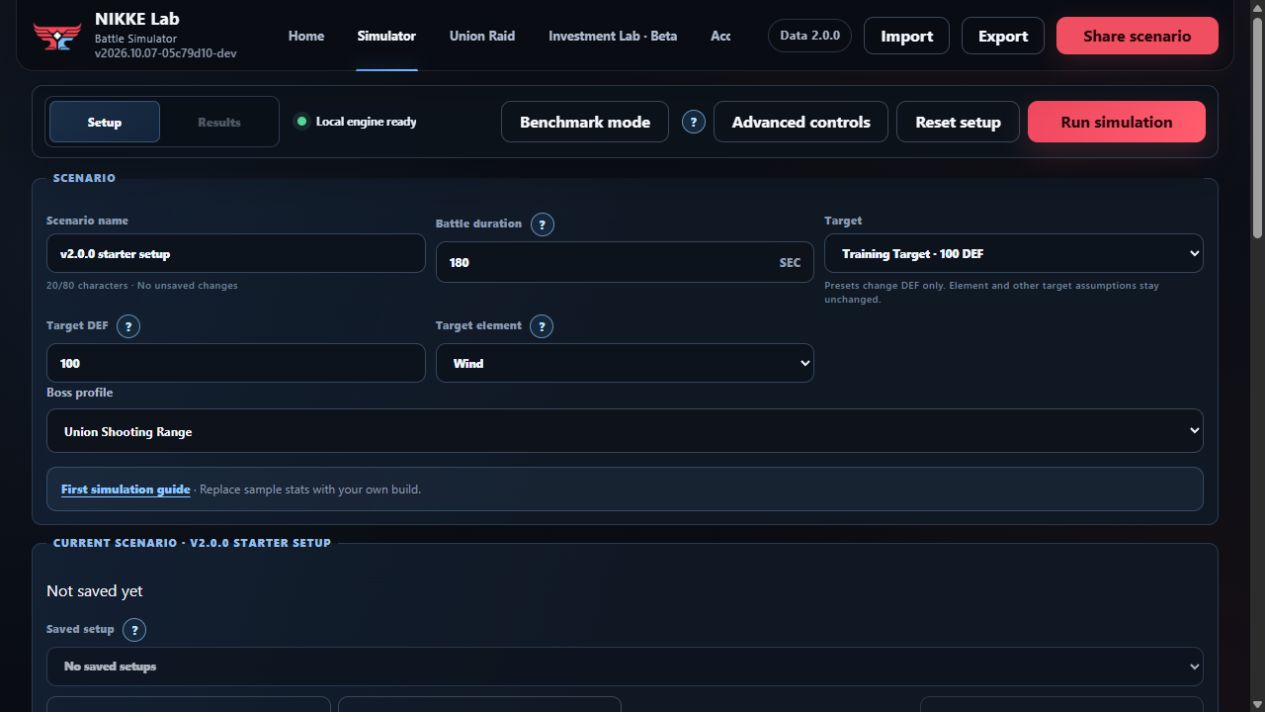
Name the scenario
Use a name that identifies the team and purpose, such as sCindy baseline or Crown Cube comparison. This helps prevent the wrong setup from becoming your reference.
Choose the Boss profile
Leave Union Shooting Range selected for the default moving-target baseline. Its weapon accuracy and jump behavior are applied together. Choose Standard assumptions for configured rates, or Liberalio for that encounter.
Set the battle duration
Use 180 seconds for the Union Shooting Range reference. Check duration again when loading a saved setup or choosing another encounter.
Choose the target DEF preset
Training Target sets DEF to 100. Solo Raid sets DEF to 30,925. A target preset changes DEF only.
Choose the target element
Element is independent from the DEF preset. Select the boss element that matches the comparison you want to make.
Check unit capabilities
Each unit card separates Buffs & support from Attack properties. Green tags mean this setup permits at least one source of the effect; gray tags mean its setup requirements are not met. Select any tag to see the color meaning, status, trigger, recipients, and conditions. A tag does not predict uptime or guarantee activation in battle.
Build the Burst plan
Choose Custom beneath the squad and select each cycle's Burst I, II, and III units. Changes apply immediately. Start from a repeating pattern, duplicate a cycle, or add a new one. Repeat cycles loops from your chosen start through the last cycle; earlier cycles play once. Squad order keeps your custom plan for later. Timing settings control gauge or benchmark timing. Conditions, cooldowns, and re-entry still determine actual casts; inspect Burst audit after running.
Compare your changes
After a run, the Latest result area shows which settings changed. Use that completed run as your reference, edit the setup, then run again. Open full results to compare the completed damage results.
Review advanced assumptions
Open Advanced controls only when core availability, range, parts, enemy count, Critical handling, or Burst automation must differ from the default. Per-unit manual rates remain available in the unit editor.
03
Check the squad before running
- Verify left-to-right squad order. Targeting and tie-break behavior can depend on slot order.
- Confirm each active unit has the intended stats and 1/1/1 through 10/10/10 skill levels.
- Confirm Cube, Doll, and Overload lines in every edited slot.
- Turn Burst off for any unit that should attack and use passive skills but should never be selected to Burst.
- Check the Boss profile, then review duration, target, DEF, element, and Burst mode in Active assumptions.
04
Run and verify the result
Run the simulation
Choose Run simulation and wait for the Results workspace to open. Avoid editing the setup while the run is in progress.
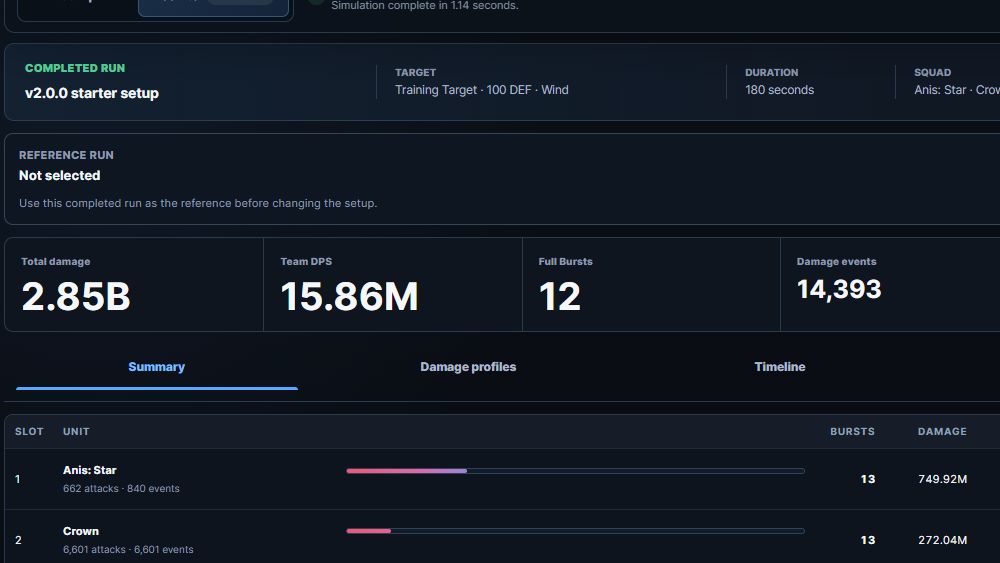
Expected: Results opens, the workspace tab says Latest run, and the Completed run panel identifies the finished scenario.
Read completed-run details
Confirm the scenario name, Boss profile, target, duration, and data version in the Completed run panel describe the run you intended.
Check Diagnostics
Resolve warnings that affect your question. A warning about changed timing, sample values, or unsupported behavior can invalidate a conclusion even when the run completes.
Pin the baseline when comparing
Choose Use current run as reference. Named setup saves preserve inputs; they do not preserve a completed result for Scenario Compare.
Final check
Verification checklist
- The result is labeled Latest run rather than Previous run.
- The completed-run Boss profile, target, DEF, element, and duration match the intended baseline.
- Every active slot has the intended unit, stats, skills, Cube, Doll, Overload lines, and Burst availability.
- No unresolved warning changes the meaning of the comparison.
- The run is pinned as the Scenario Compare reference before the next edit.
Troubleshooting
Common mistakes
Damage looks far too low or high
Likely cause: The wrong target DEF preset or generic sample stats are active.
Fix: Check the target summary and replace sample stats with a level reference, manual values, or imported values.
The intended unit never Bursts
Likely cause: Burst is disabled for that slot or another eligible unit wins the left-to-right selection.
Fix: Review Burst on/off for each slot and the Burst order controls.
Results do not change after an edit
Likely cause: The visible result is stale.
Fix: Choose Run again and confirm the status says Latest run.