Before you start
What you need
- Complete one trustworthy baseline run first.
- Decide exactly which build variable or small group of variables the comparison should test.
- Keep both runs on the same simulator and data revision.
01
Compare units at a shared investment level
Choose Benchmark mode
Click Benchmark mode at the top of the simulator. Your selected lineup stays in place while standardized builds and battle defaults replace the current settings. The /simulator/benchmark link opens this same simulator with Benchmark mode already applied.
Review the starting conditions
Benchmark defaults use Lv400 stats, four Level 5 Overload equipment pieces, compatible SR15 Dolls, 10/10/10 skills and your selected cubes at Lv15. Configured OL effects and their exact values are preserved rather than reset. Cube type and level remain editable on each unit card; equipping a new cube in Benchmark mode starts it at Lv15. Account bonuses are excluded. The target starts at 180 seconds, 10,000 DEF, neutral element, 50% core hits, and 100% effective range, with Expected critical handling and 100% weapon accuracy.
Set your tested unit’s OL build
Open Edit build, then Equipment, to enter the lines you want to compare. Entering Benchmark mode and reapplying its defaults keep the configured lines and exact values. Swapping a tested unit retains the slot’s OL recipe so you can adjust it. Newly added units start with empty editable lines. The simulator does not automatically choose or label a build as optimal.
Choose the element matchup
Use Neutral for a target without native elemental advantage, or select a Reference unit and choose Advantage to target its weak element. Teammates retain their real matchups. Editing Target element directly switches to Custom target and keeps that choice even if you change units. The Reference unit also sets the tracked slot for analysis; it does not change Burst order or the manually controlled unit.
Run the baseline using the usual controls
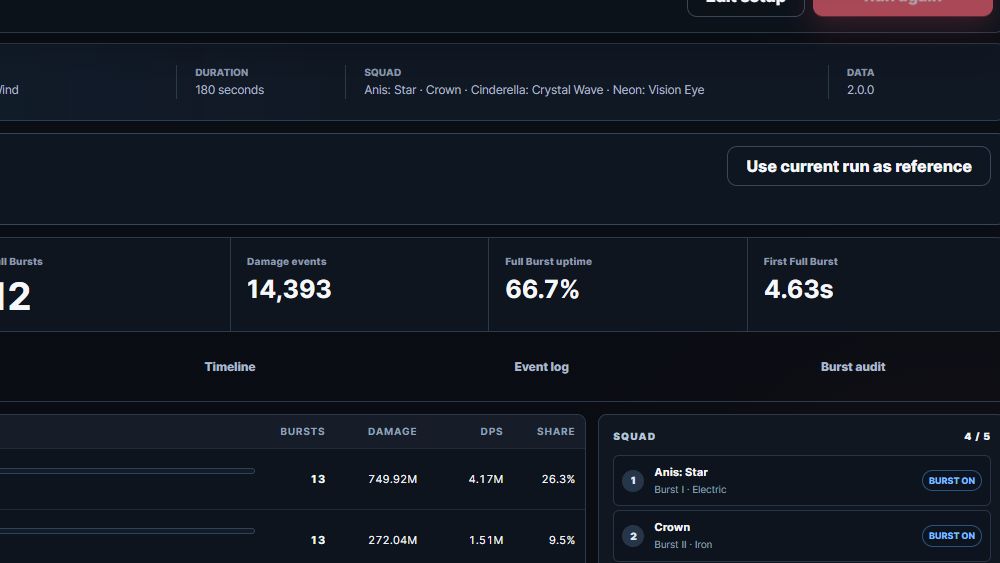
Review the unit cards, slot order, and Burst participation, then choose Run simulation. Read the normal Results workspace and choose Use current run as reference to pin this baseline. Units need a reviewed benchmark stat reference; an unsupported lineup leaves your previous setup unchanged and explains the problem.
Edit one variable and compare
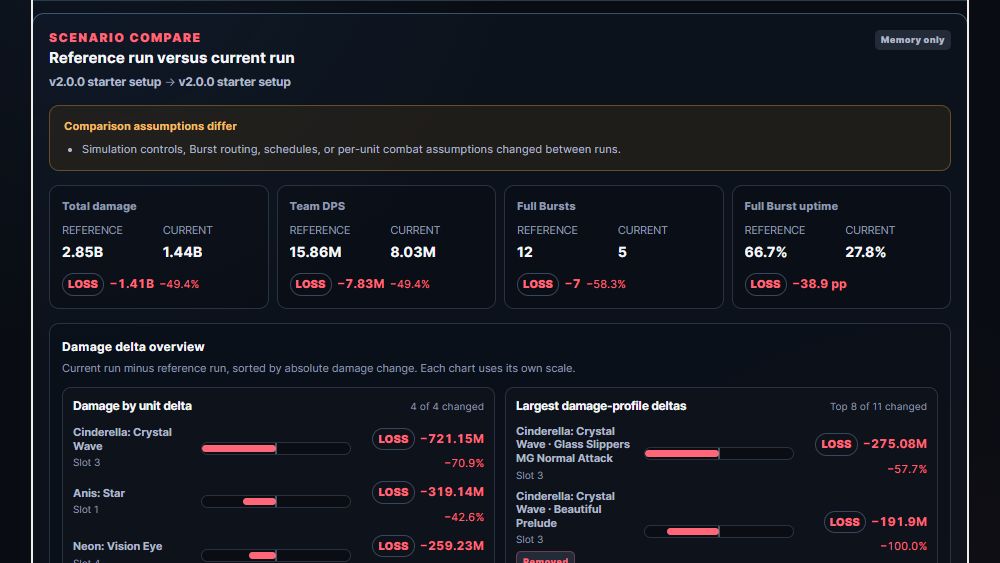
Change a unit, cube, build, or battle assumption in the normal Setup workspace. Apply any pending unit drafts, then run again. Use Scenario Compare to inspect setup changes, team totals, and unit and damage-source deltas. A support unit can improve teammates' damage even when its own damage is lower; check Burst timing and simulation notes as well.
Recognize changes to the defaults
The Benchmark setup banner shows edited after you change the scenario. Reapply benchmark defaults resets base investment, cube levels and battle conditions while preserving the currently selected lineup, cube types and configured OL lines. Rerun after applying defaults or making other changes so the results match the setup you intend to compare.
Save the benchmark or restore your previous setup
Give the benchmark its own Scenario name and choose Save setup to keep its inputs separately. Restore previous setup returns to the setup you had before entering Benchmark mode, including unsaved account edits, its original saved-setup association, completed results, and pinned reference. This return point lasts only for the current simulator session; refreshing, leaving, or explicitly loading, importing, or resetting a setup clears it. Save any benchmark edits you want to keep before restoring.
02
Pin the completed baseline
Complete the baseline
Run the setup that represents the current build or control condition. Resolve warnings that would make the baseline unsuitable.
Choose Use current run as reference
This stores the completed-run snapshot needed by Scenario Compare. Saving a named setup stores scenario inputs only and is not a substitute.
Expected: The Results workspace identifies the pinned reference run and offers Clear reference or Replace reference with current run.
Return to Setup
Change the unit, skills, Cube, Doll, Overload lines, or other intended test variable. Avoid unrelated edits.
03
Protect the comparison
| Changed input | Effect on interpretation |
|---|---|
| Battle duration | Total damage and event counts are not directly comparable; DPS remains a rate |
| Tick rate | Event timing and cadence are not directly comparable |
| Target identity, DEF, element, core, range, or parts | The two runs no longer answer the same target question |
| Critical handling | The expected damage policy changed |
| Tracked or enabled squad composition | Team totals can change for reasons unrelated to the intended unit build |
| Engine or data version | The comparison is blocked; rerun both scenarios on the same revision |
04
Run the candidate and read deltas
Run the edited setup
Complete a new run. The pinned reference remains unchanged while the candidate is calculated.
Read warnings and setup changes first
Scenario Compare lists changed fields and warns when duration, timing, target assumptions, Critical handling, composition, or other simulation controls differ.
Read team metrics
Use total damage for equal-duration comparisons and DPS when durations differ. Review Full Burst count and uptime when rotation changes may explain the result.
Read unit deltas
Find which slots gained or lost damage. Team-wide buffs can move every unit even when only one unit's build changed.
Read source deltas in Damage breakdown
The source rows identify whether the difference came from normal attacks, skills, Burst casts, or secondary damage.
05
Compare average damage, consistency, and target odds
Open Results, then Crit & consistency
Analysis uses the completed scenario. Choose Team or a physical unit slot. The Workers control changes throughput; the same completed seed and budget produce the same result.
Read coverage before interpreting the range
P10 to P90 describes the central modeled outcomes, not guaranteed damage. The coverage disclosure lists crit-capable damage held at its expected value. This fixed-timeline model does not replay crit-driven triggers, accuracy or timing.
Set a damage target
Enter values such as 850M or 1.2B. The result is the chance of meeting or exceeding that number, including equality. The probability interval describes sampling precision, not mechanic accuracy. Target changes reuse the completed samples.
Compare a legal OL change
Choose the edited unit, create a variant, and edit its actual gear rows and tiers. Teammates and battle assumptions remain the same. Compare average damage for sustained output, P10 for lower outcomes, or target probability for your threshold. These are tested builds, not a global optimum. Equal line counts or tiers do not imply equal farming costs.
Inspect and present the conclusion
Sources of variation identifies attacks driving the spread and links to their damage audits. Check uncapped CR and capped opportunities before adding more CR. Present opens branded graphics with arrow navigation, optional links, and a hideable bar. Applying a variant changes setup OL only; run again to obtain a new completed scenario.
06
Continue the test series
Use Replace reference with current run when the current candidate should become the new baseline. Use Clear reference when the next test answers a different question.
For several variants against one control, keep the original reference pinned and rerun each candidate from the same baseline assumptions. Record the result before moving to the next candidate.
Final check
Verification checklist
- The intended completed run is identified as the reference.
- Every recorded setup change belongs to the comparison question.
- Target, duration, element, timing, Critical handling, and Burst policy are unchanged unless deliberately tested.
- Warnings were read before interpreting damage deltas.
- Team totals, unit deltas, and profile deltas tell a consistent story.
Troubleshooting
Common mistakes
The reference disappears after saving a setup
Likely cause: Named setup saves and completed-run references are separate features.
Fix: Run the baseline and choose Use current run as reference in Results.
Total damage changes far more than expected
Likely cause: Duration, target assumptions, Burst routing, or another unit's loadout changed.
Fix: Read the setup-difference list and restore every unrelated field.
Every unit loses damage after one build edit
Likely cause: The edited unit may provide a team buff, change Burst timing, or alter Full Burst uptime.
Fix: Inspect unit and profile deltas plus Burst count and uptime rather than attributing the entire loss to personal damage.