Before you start
What you need
- Choose the unit and slot you intend to configure.
- Know whether the build should represent your account, a fixed level benchmark, or a hypothetical test.
- Account importing is optional; every field can be entered manually.
01
Choose the correct stat source
| Method | Best for | Important limit |
|---|---|---|
| Manual HP, ATK, and DEF | Exact screenshots, hypothetical values, and controlled tests | You must keep the values current yourself |
| Level + loadout preview | Consistent fixed-loadout benchmarks across a squad | It adds four role-appropriate Level 5 Overload equipment pieces from exact catalog rows plus the selected Doll and Cube primary stats; bond, limit breaks and cores, Recycling Room and consoles, and other account progression are excluded |
| Saved account profile | Your owned units and their captured loadouts | File imports are browser-local by default; optional Library sync copies the saved sanitized record. Library bulk imports explicitly save to both the device and Discord Library. Every capture reflects the source data available at that time |
| Generic sample stats | Learning the interface | Do not use them for meaningful unit comparisons |
02
Use squad-wide controls when appropriate
- Max all skills sets Skill 1, Skill 2, and Burst to Level 10 for every active occupied slot.
- Max all dolls equips a compatible maximum-level SR Collection Doll to each eligible active unit and clearly reports ineligible slots.
- Set squad stats by level previews the reviewed level curves plus four Level 5 Overload pieces and each slot's selected Doll and Cube primary stats before applying them to every enabled unit. A missing reviewed field is marked kept.
- Swap squad slots moves each unit's complete build and scenario selections tied to that unit.
03
Edit one unit's build
Open Edit build
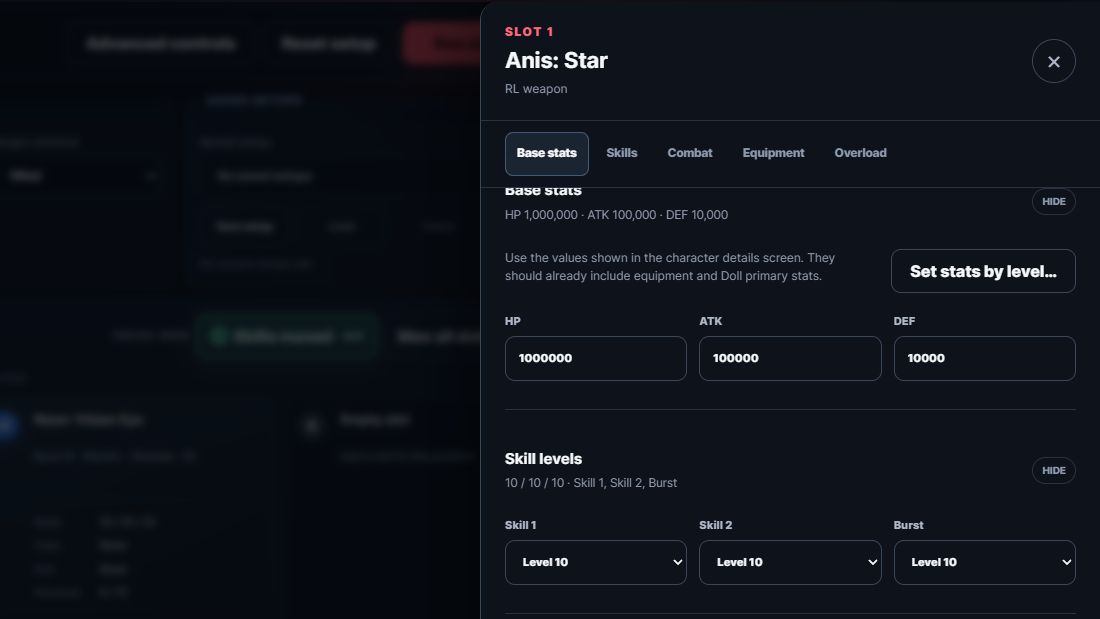
Select the unit's slot and choose Edit build. The inline editor keeps a separate draft for each squad slot. Switching units or tabs preserves those drafts until you apply or discard them.
Set stats and skills
Enter HP, ATK, and DEF or apply a loadout-inclusive level preview. The preview recomputes from the selected level and loadout, so applying it repeatedly does not add the same primaries twice. Set Skill 1, Skill 2, and Burst individually when the guide or benchmark is not 10/10/10.
Set equipment effects
Choose the Cube and level directly on the unit card. When the editor is closed, card changes apply immediately. While the editor is open, they join that slot's draft in both normal and benchmark mode. Use the Equipment tab to choose a compatible Collection Doll and level. After a loadout-inclusive level preview, changing either selection refreshes its flat primary contribution. Overload bonus lines and Cube/Doll secondary effects remain separate simulator modifiers. Manual and imported character-detail totals are not automatically adjusted.
Configure Overload gear
The Equipment tab shows all four gear pieces, each with three saved line positions. Choose Preset, Custom, or Off, then set the stat and roll level for Custom lines. An optional exact value overrides the roll table value.
Review Advanced combat settings
Open Advanced in the unit editor. Weapon fire mode lets the unit fire automatically, hold during Full Burst, or hold throughout battle. Holding pauses normal shots and their ammo use, Burst gauge, and attack triggers; eligible passive skills and Burst casts continue. Automatic rates follow the active weapon. Only set manual accuracy, core, range, element, weapon, or tracking overrides when the test requires them.
Apply all changes
Apply all changes updates every changed unit in the current setup and keeps the editor open. Choose Save setup afterwards to keep the build for another session. Discard this unit's changes restores only the selected slot to its last applied build. Closing with pending edits offers Keep editing, Discard all and close, or Apply all and close. Apply or discard pending drafts before running, saving, loading, or changing benchmark mode.
04
Copy Overload lines or reset the unit
Copy lines stores all three draft settings from one gear piece. Paste replaces all three draft lines on the destination piece, so review the destination before applying the build.
Reset to simulator defaults keeps the selected unit in the slot but restores placeholder stats, 10/10/10 skills, no Cube or Doll, no Overload lines, and automatic combat assumptions. The confirmation appears inside the editor before anything is reset.
Final check
Verification checklist
- The selected slot summary shows the intended skill levels, Cube, Doll, and Overload count.
- HP, ATK, and DEF come from the intended manual, loadout-inclusive level-preview, or account source.
- No equipment warning reports an incompatible Doll, inconsistent shared Cube level, or capacity problem.
- Manual combat overrides are blank unless the test specifically requires them.
- The scenario is rerun after the applied build change.
Troubleshooting
Common mistakes
The edited values disappear
Likely cause: The pending draft was discarded before Apply all changes.
Fix: Use Keep editing when closing with pending changes. Switching units or tabs keeps each draft; choose Apply all changes when the builds are ready.
A unit replacement has surprising stats
Likely cause: The previous slot values were preserved or a saved loadout-inclusive level reference recalculated them for a different role and equipment profile.
Fix: Read the replacement confirmation and choose the intended stat behavior.
Pasted Overload lines remove existing lines
Likely cause: Paste replaces all three draft lines on the destination piece.
Fix: Review the copied source and destination before applying the unit draft.